Aller au contenu
fr
CAD

🌨️ Des retards sont à prévoir en raison des conditions météorologiques. ❄️

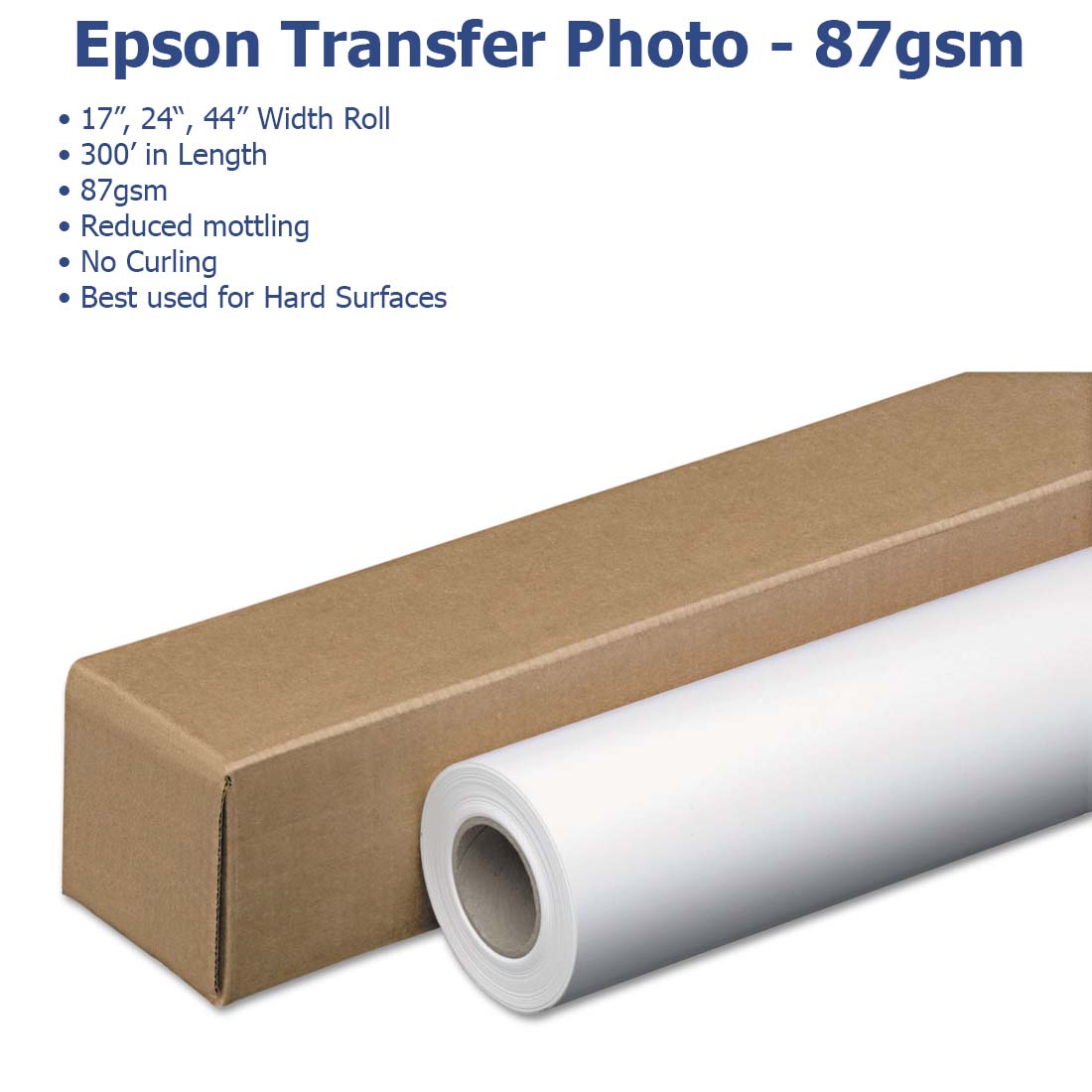
Epson Paper

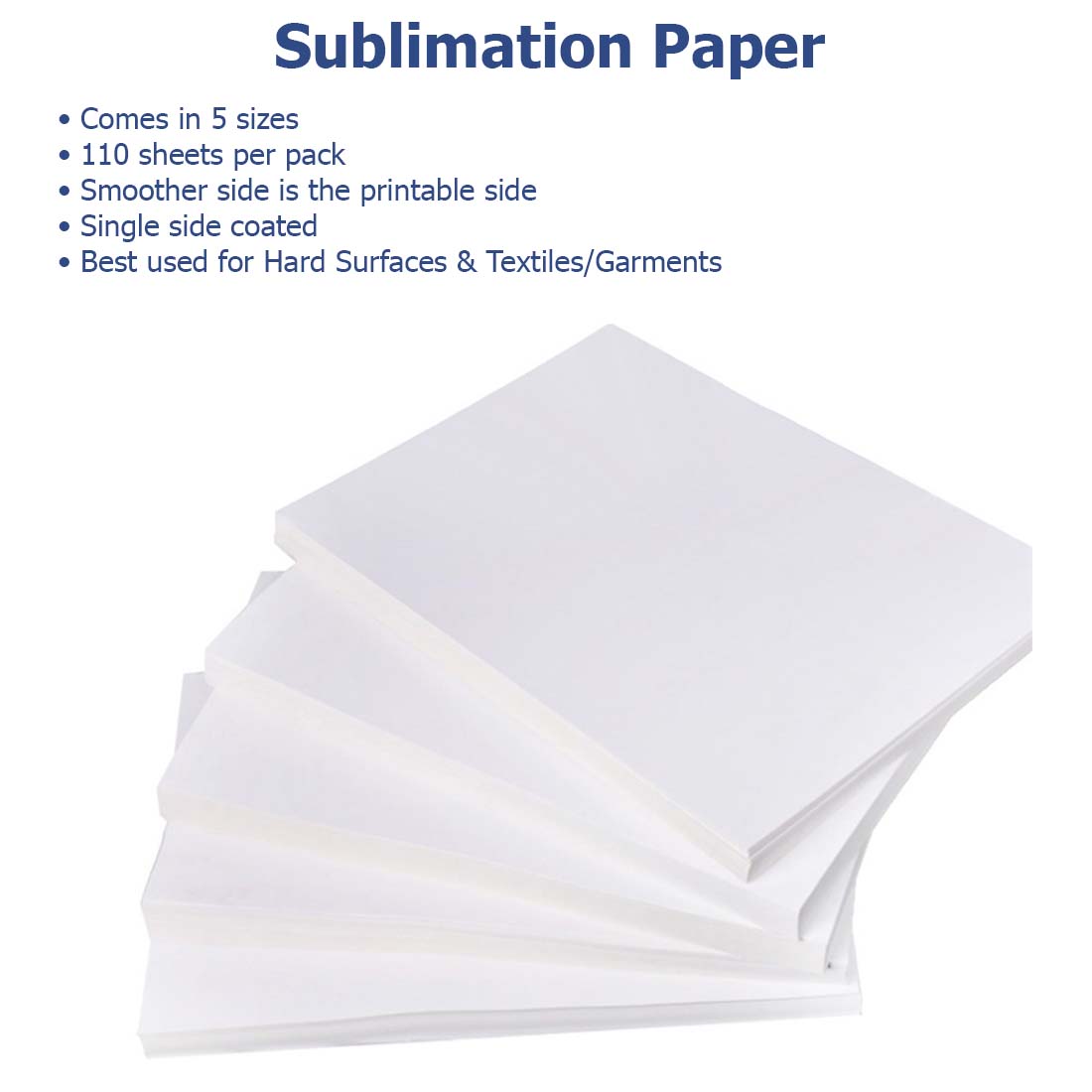
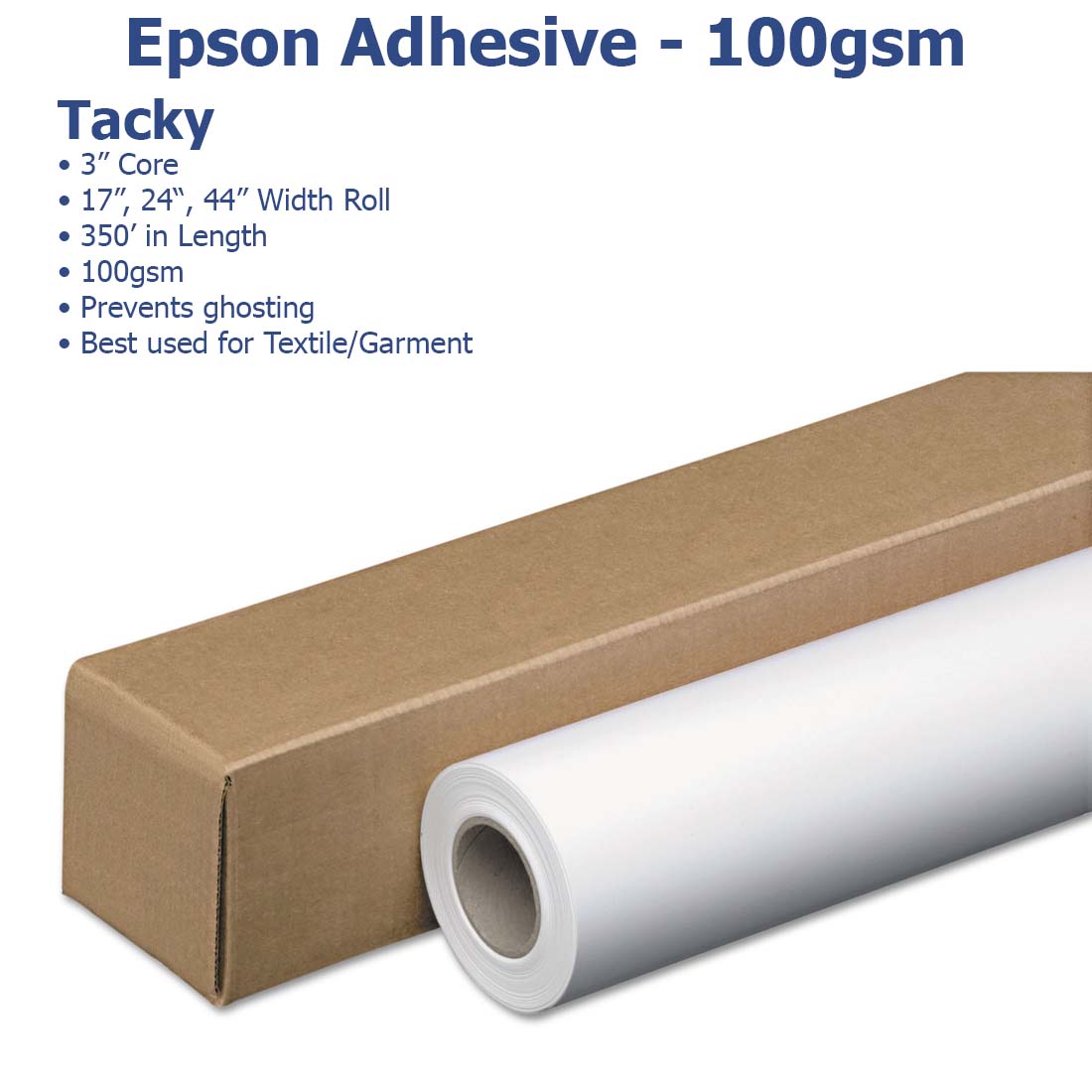
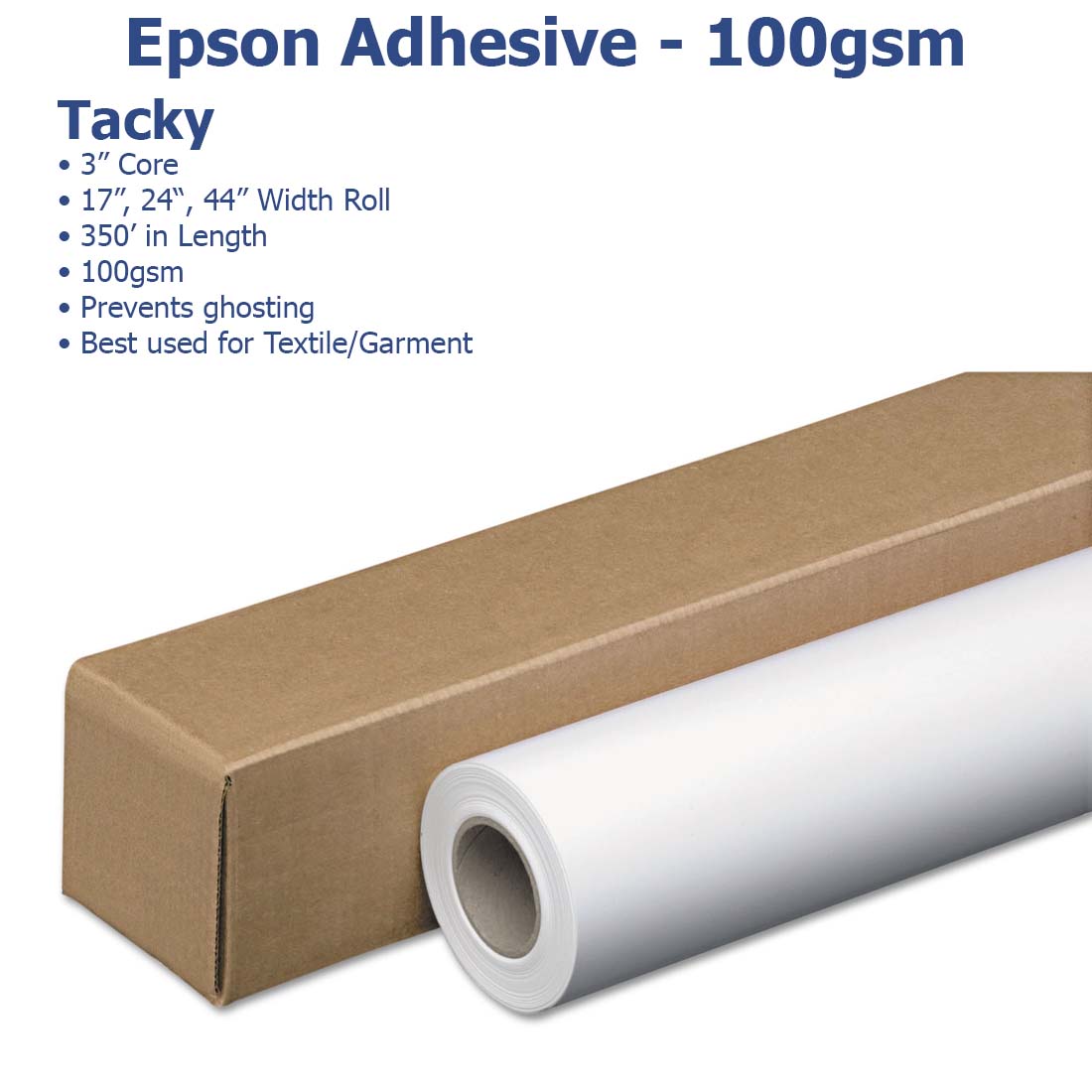
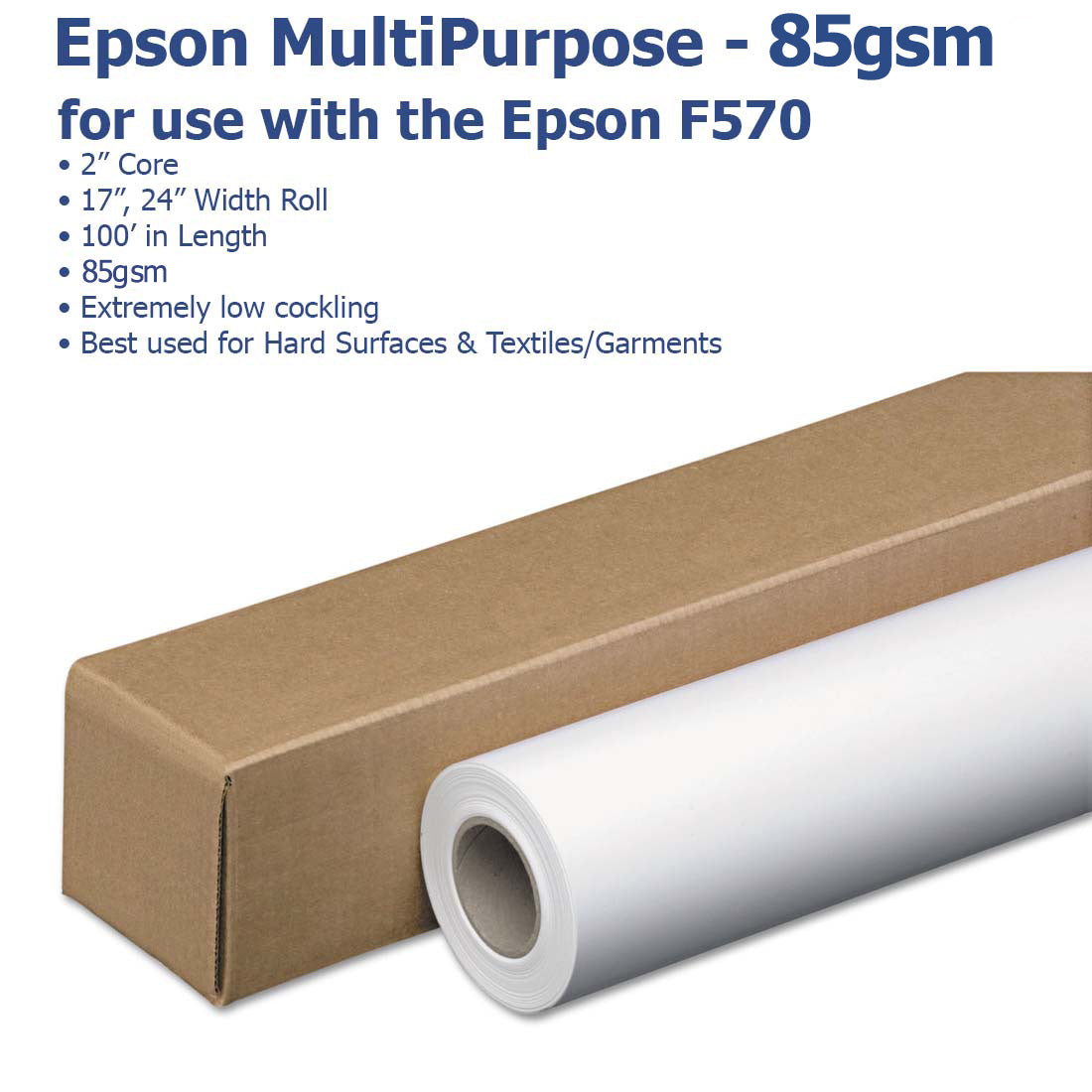
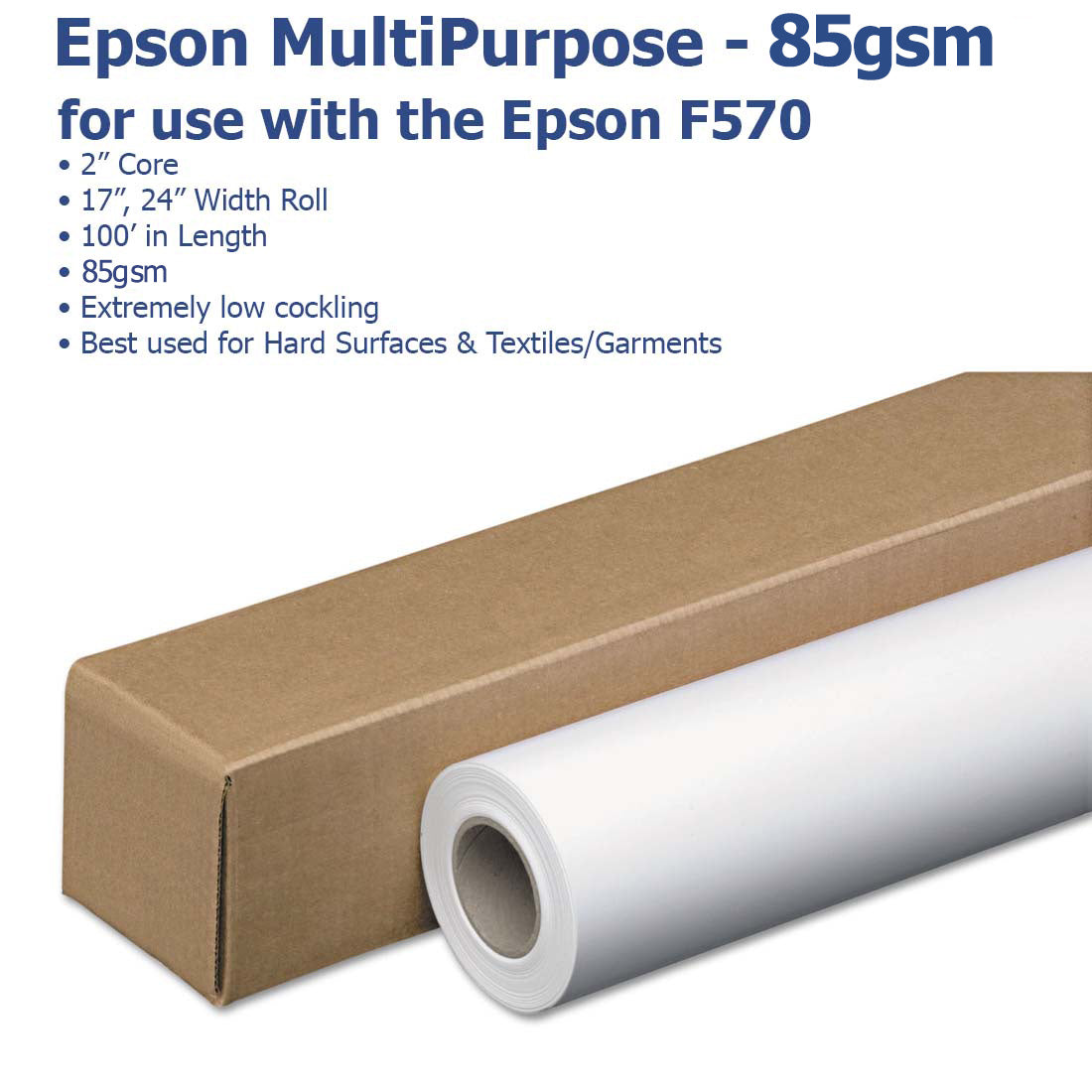
Epson Sublimation Paper


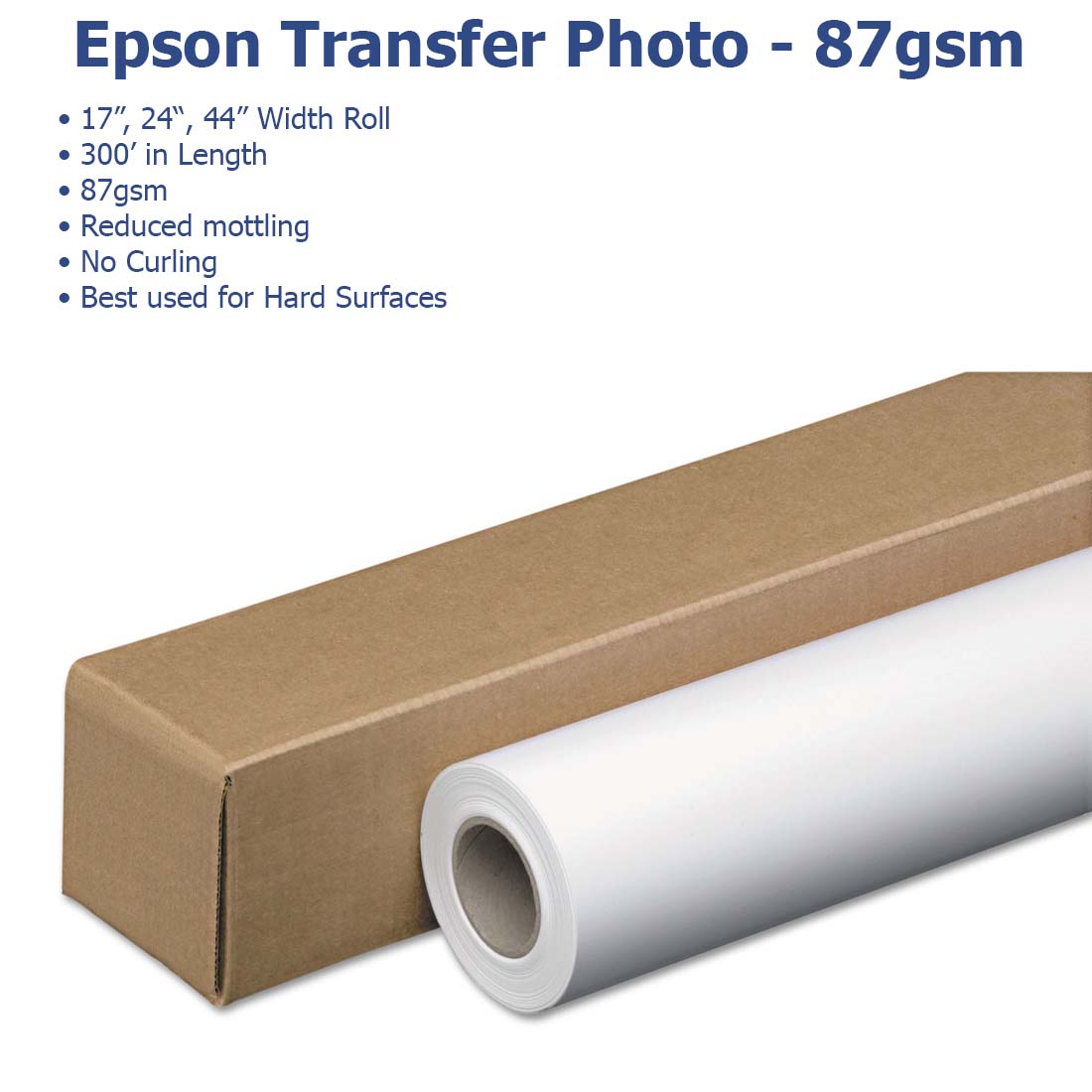
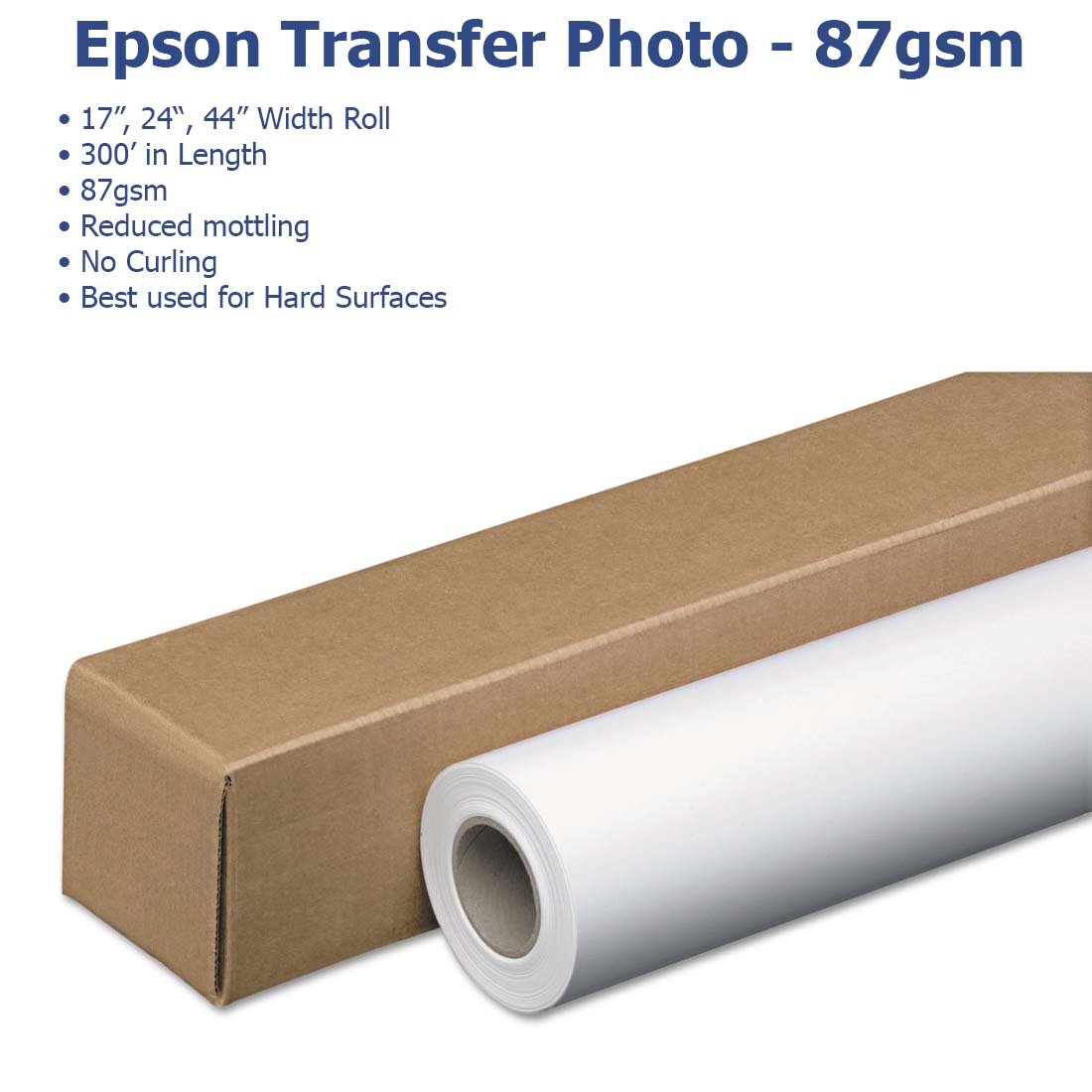
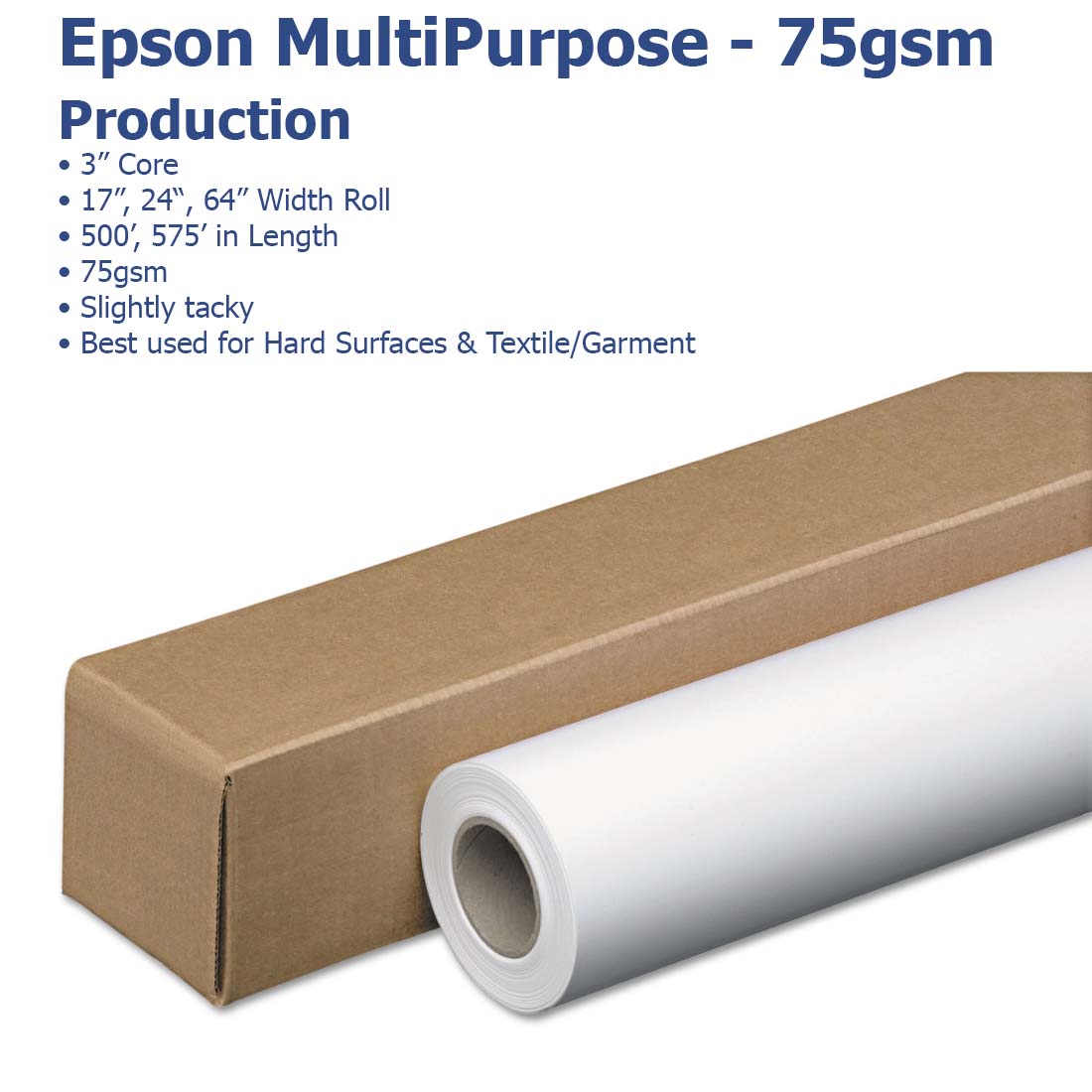
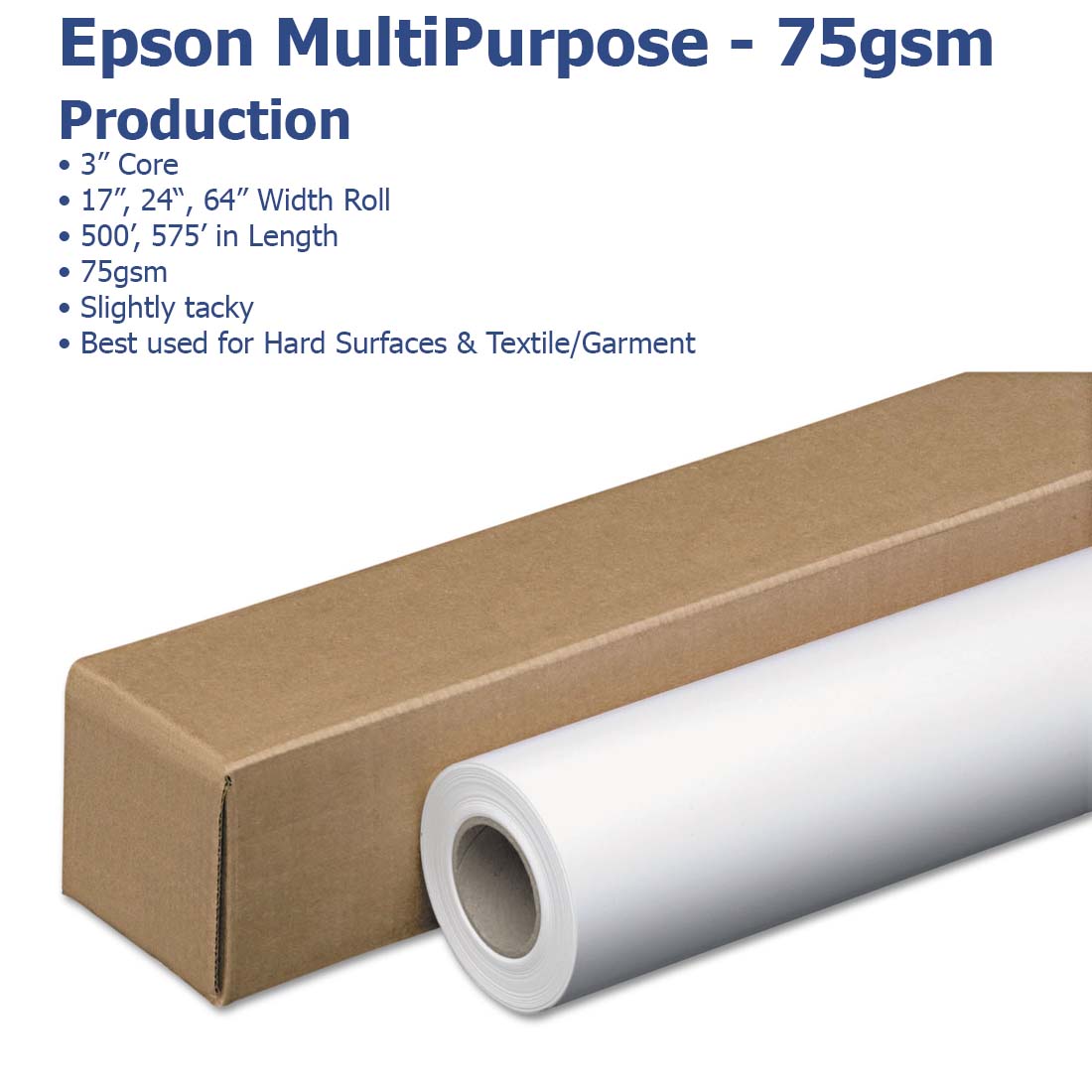
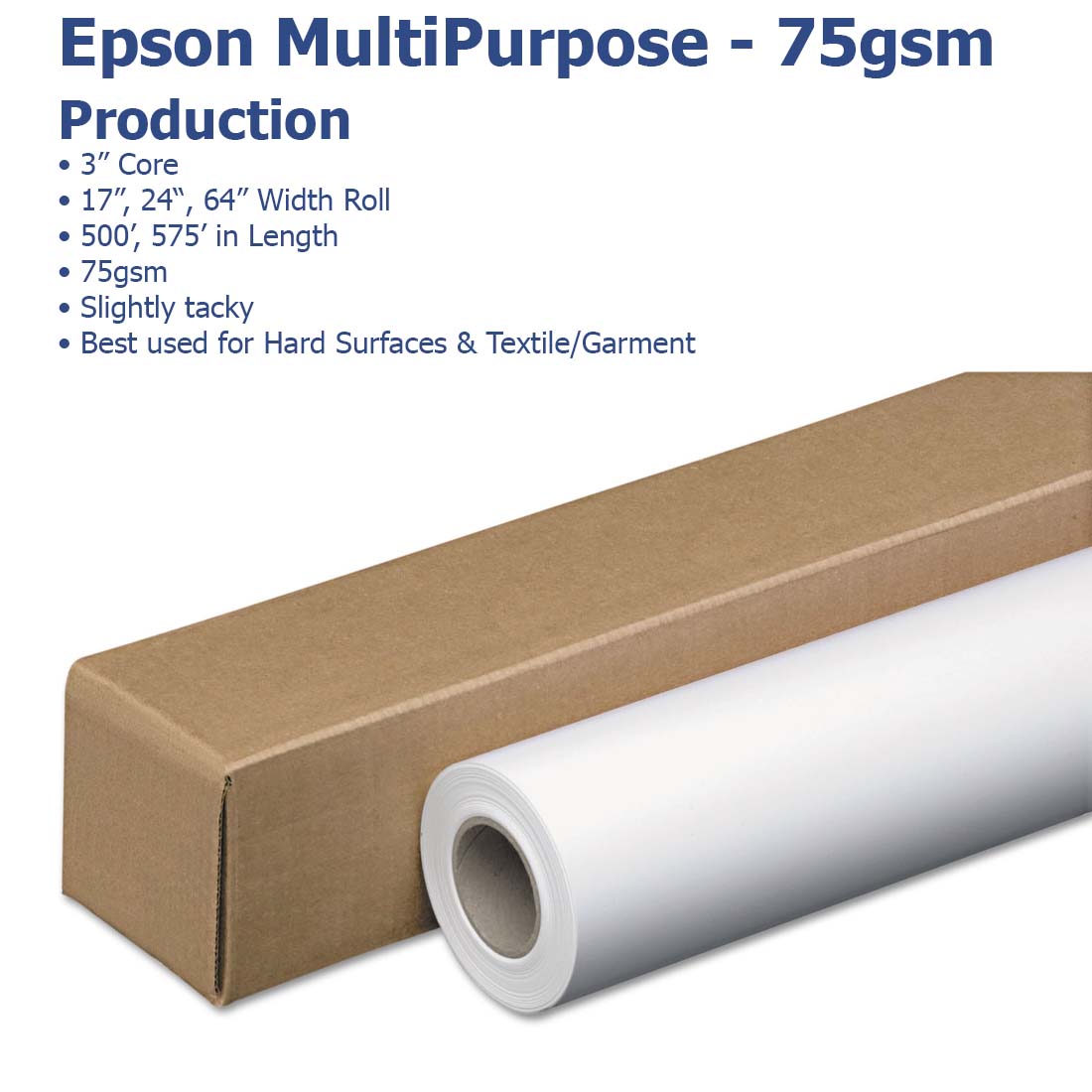
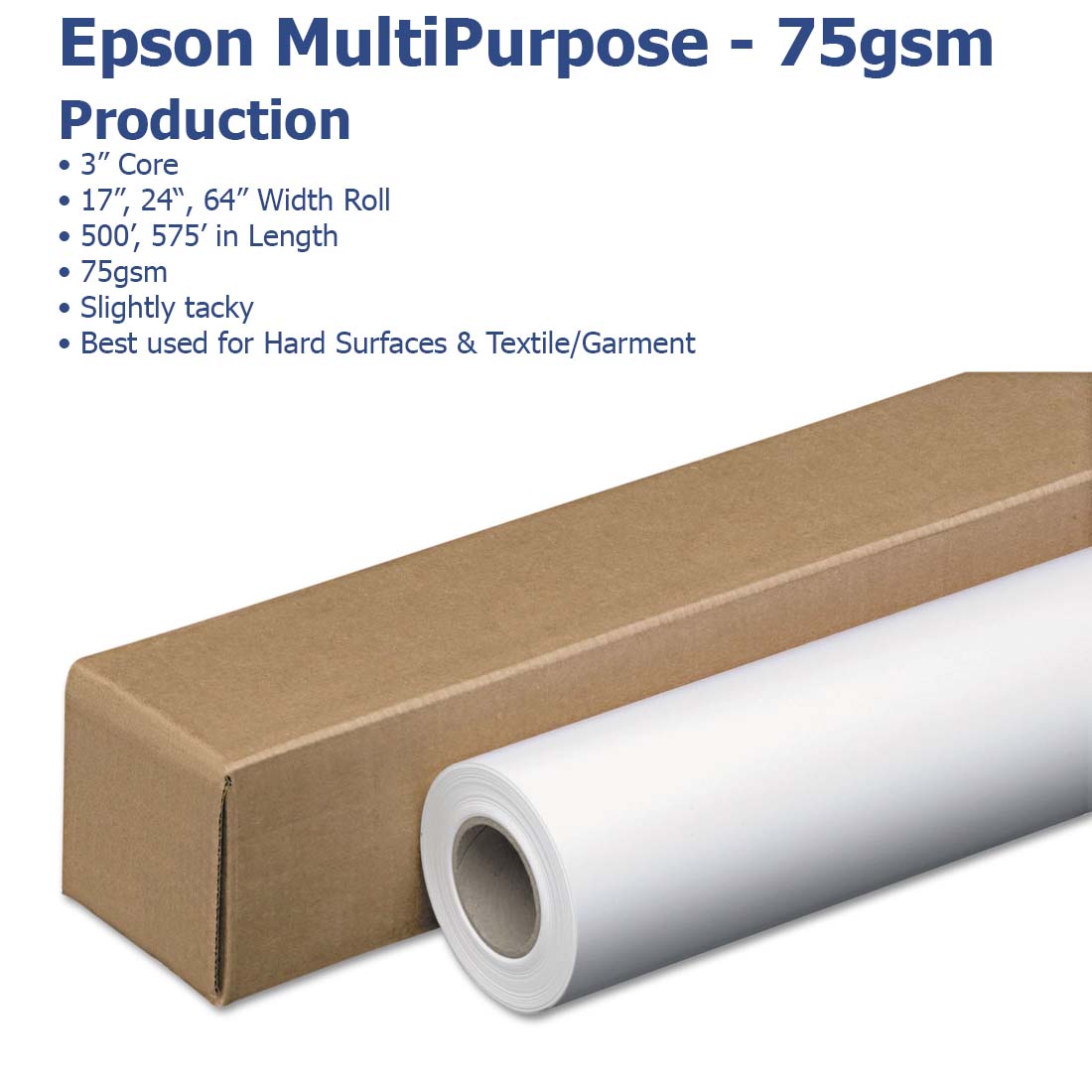
Is engineered to deliver consistent, high-quality sublimation results with sharp details and vibrant color transfer. Designed to work seamlessly with Epson printers, it ensures reliable ink release, smooth handling, and professional output for both small studios and high-volume print shops.

Frequently Asked Questions:

What is Epson paper and what is its primary use in digital imaging and sublimation?

Epson paper comprises a range of professional-grade media engineered with specialized coatings to ensure superior ink absorption and precise color reproduction for digital imaging and sublimation applications. In dye-sublimation, these high-performance transfer papers are designed to hold heavy ink loads and provide high release rates, facilitating vibrant and sharp image transfers onto polyester fabrics and polymer-coated substrates. For digital imaging, Epson photo papers offer archival-quality finishes and exceptional detail, making them an industry standard for professional photographers and graphic designers requiring consistent, high-resolution output. Joto Imaging Supplies provides these genuine Epson media solutions to ensure maximum compatibility with Epson SureColor printers, delivering reliable results for all your custom decoration and commercial printing needs.

What printer models and paper types are compatible with Epson Paper for high-quality imaging?

Epson Paper is engineered for high-performance compatibility across a broad range of Epson systems, including EcoTank, ET Series, and professional-grade wide-format printers. For high-quality imaging, these media are optimized for use with specialized inkjet papers such as Epson Premium Glossy, Ultra Premium Presentation Matte, and Bright White Pro Paper. These professional-grade papers utilize advanced coatings to ensure superior ink absorption and color vibrancy when paired with genuine Epson ink systems. To achieve the best results, users should select the corresponding ICC media profile in the printer driver to maintain precise color accuracy and professional print quality.
How can I ensure the long-term durability and proper storage of prints made with Epson Paper?

To ensure the long-term durability of prints made with Epson Paper, it is critical to store them in acid-free, archival-quality sleeves and display them under glass or lamination to protect against humidity and atmospheric contaminants. Maintain a climate-controlled environment with stable temperatures between 59°F and 77°F and relative humidity levels between 40% and 60% to prevent paper curling or yellowing. For maximum lightfastness and image permanence, avoid direct sunlight exposure and utilize pigment-based inks combined with heavyweight matte or glossy media. Following these technical storage and display guidelines will preserve the professional color vibrancy and integrity of your photographic and art prints for decades.

How do you properly print and apply Epson Paper to achieve professional-quality results?

To achieve professional results with Epson Iron-On Cool Peel Transfer Paper, print your high-resolution design in reverse using the Flip Horizontal setting and the Premium Presentation Matte paper profile. Preheat your heat press or iron to approximately 392°F (200°C) and apply firm, steady pressure across the entire transfer for 60 to 90 seconds to ensure a durable bond with the fabric fibers. Once the pressing cycle is complete, allow the media to cool completely for at least two minutes before carefully peeling away the backing paper to reveal a vibrant, wash-fast finish. This meticulous process ensures maximum color depth and long-lasting quality for custom apparel and textile decoration projects.

What are the most common causes of poor ink absorption or paper jamming when using Epson Paper for transfers?

Poor ink absorption and paper jamming when using Epson Paper typically result from incorrect media settings or environmental factors like high humidity that cause the transfer paper to curl. For optimal ink absorption, ensure you are printing on the specially coated side and have selected the correct ICC profile to manage ink density and prevent saturation issues. To prevent jams, store your Epson Paper in a climate-controlled environment and fan the sheets before loading to ensure the printer’s rollers can grip the media without slippage. Maintaining these technical standards ensures the high-resolution output and reliable performance expected from Joto Imaging Supplies' professional transfer media.

How can I achieve maximum color vibrancy and professional print quality with Epson Paper?

To achieve maximum color vibrancy and professional results with Epson Paper, ensure your designs are high-resolution at 300 DPI and utilize the correct ICC color profiles within your RIP software or design application. Optimize your output by selecting the specific media type setting, such as Premium Presentation Paper Matte or Photo Paper Glossy, and disabling high-speed printing to ensure precise ink placement and saturation. Maintain consistent printhead performance through regular nozzle checks and environmental control to prevent banding, and utilize "Photoshop Manages Colors" or similar settings with "Off (No Color Adjustment)" selected in the printer driver for superior color accuracy. Finally, verify you are printing on the coated side of the media and allow the ink to fully dry to preserve the rich tonal range and professional finish.


How can using Epson Paper help your business reduce production costs and increase profit margins?

Utilizing Epson Paper significantly reduces production costs by leveraging innovative anti-curl and precision-cutting technologies that eliminate the main causes of printer jams and equipment downtime. These high-quality specialty papers feature advanced coatings that optimize ink absorption and yield, ensuring professional-grade color vibrancy while minimizing material waste. By integrating these reliable media solutions into your workflow, your business can achieve a faster turnaround on high-volume projects, ultimately increasing profit margins through improved operational efficiency and reduced service requirements.

How should Epson Paper be stored to maintain its quality and ensure optimal printing results?

Epson Paper should be stored in its original packaging within a climate-controlled environment, ideally between 59°F and 77°F (15°C–25°C) with a relative humidity of 40% to 60%. To prevent physical defects such as curling or waving, keep unused media dry and store cut sheets flat while avoiding areas subject to direct sunlight or excessive heat. For optimal results, return unused paper to its resealable packaging immediately after printing and handle media only by the edges or with cotton gloves to prevent oil contamination. Maintaining these precise storage conditions ensures maximum archival stability and prevents paper jams or ink smearing during high-quality production runs.

How does Epson Paper compare to traditional sublimation or laser transfer methods for high-quality product decoration?

Epson Paper offers a superior, integrated solution for high-quality product decoration by providing optimized ink absorption and high-release efficiency specifically engineered for Epson sublimation systems. Unlike traditional laser transfer methods that rely on surface bonding, Epson’s specialized coatings ensure deep ink penetration into polyester fabrics and polymer-coated rigid substrates for more vibrant, durable results. This professional-grade media significantly reduces the risk of ghosting and smudging compared to generic alternatives, ensuring maximum color accuracy and professional-grade finish across both textiles and hard goods. Using genuine Epson paper streamlines the decoration workflow by ensuring seamless compatibility with dedicated sublimation printers, ultimately lowering production waste and increasing overall profit margins.

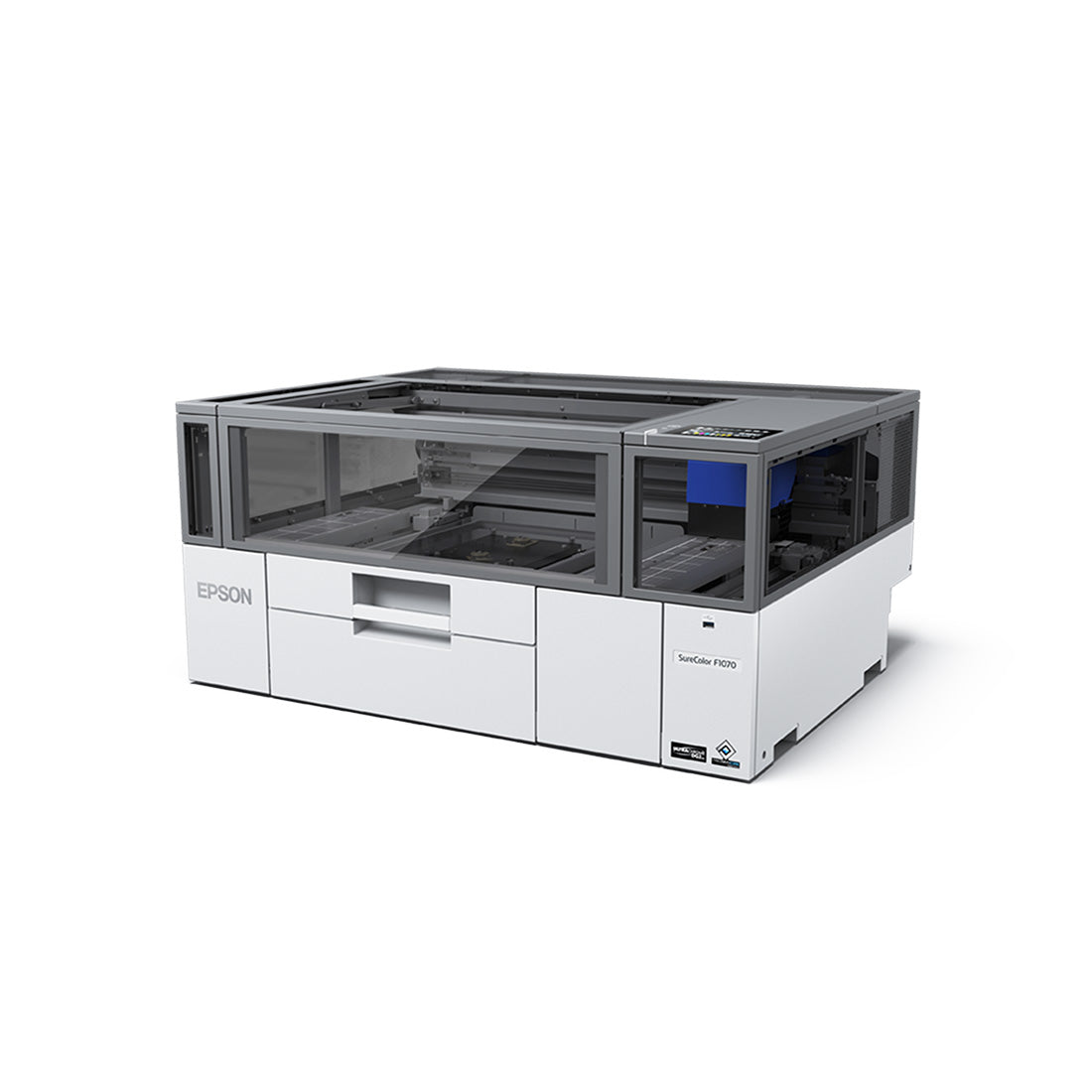
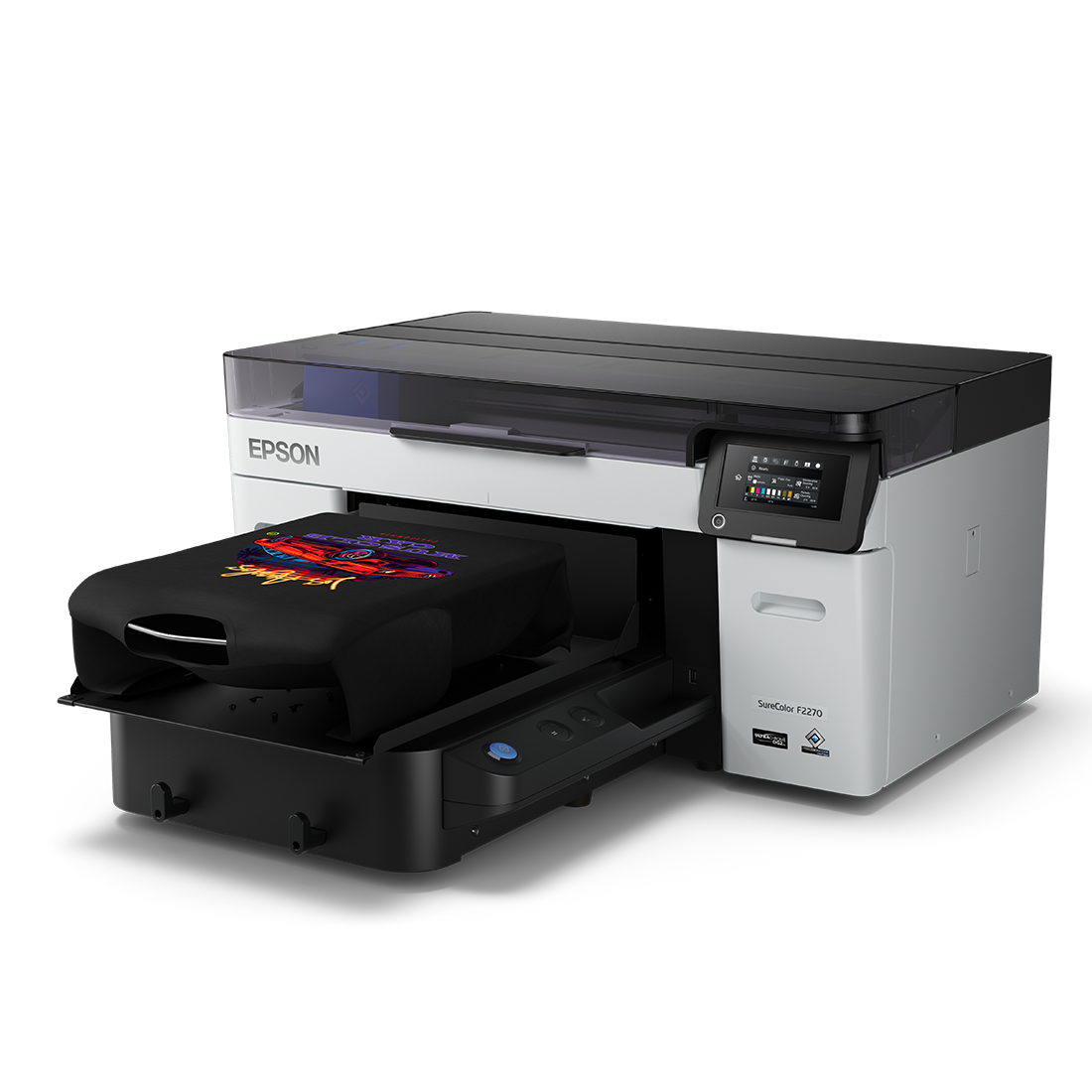
How can you calibrate the platen height and vacuum suction levels on your Epson F-series printer to eliminate head strikes and ensures precise ink registration on lightweight Epson Paper?

To calibrate your Epson F-series printer for lightweight Epson Paper, navigate to the Media Setup menu to adjust the platen gap and increase media suction levels to prevent paper curl and head strikes. Set the platen height to the optimum position—typically one step beyond the first Ready message—to maintain the ideal distance between the print head and the substrate for precise ink registration. For thin or lightweight media, utilize the control panel to select a Standard or Wide platen gap and enable the Reduce Scuff setting if scuffing persists during high-speed production. This technical calibration ensures superior print quality and long-term equipment reliability by eliminating ink mist and mechanical interference.

Drawer Title
produits similaires