Skip to content
en
CAD

 🌨️ Please expect delays due to weather conditions ❄️

Epson Printers

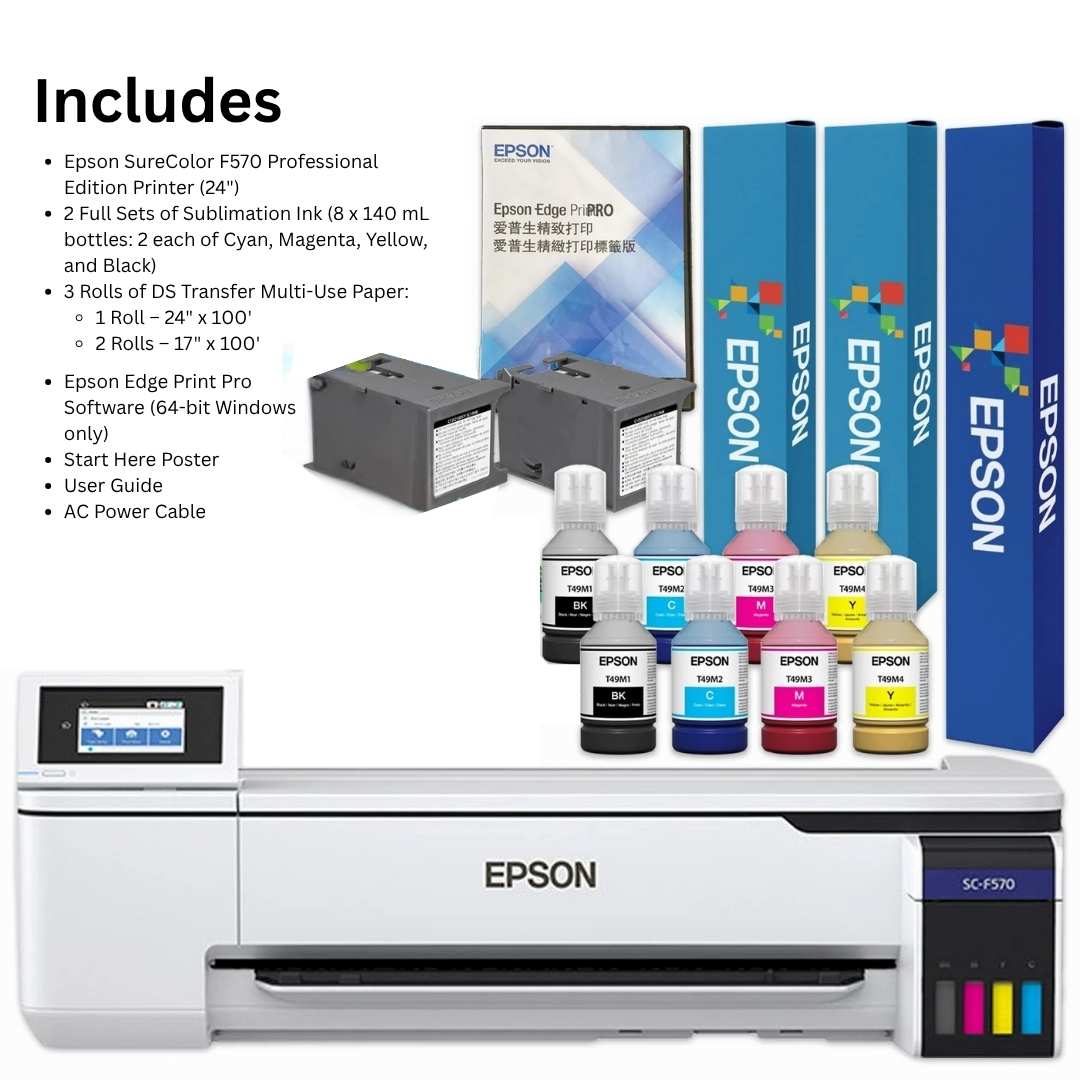
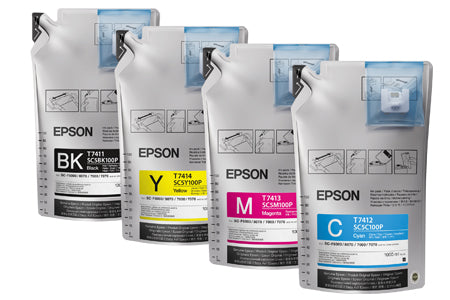
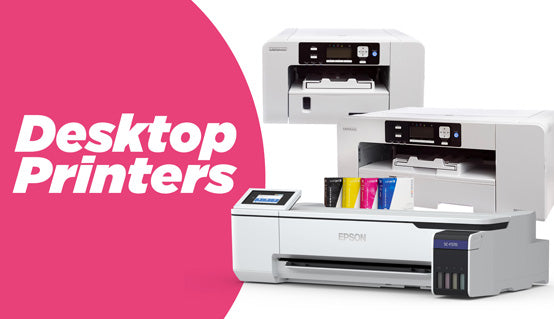
Epson Dye Sub and DTF Printers


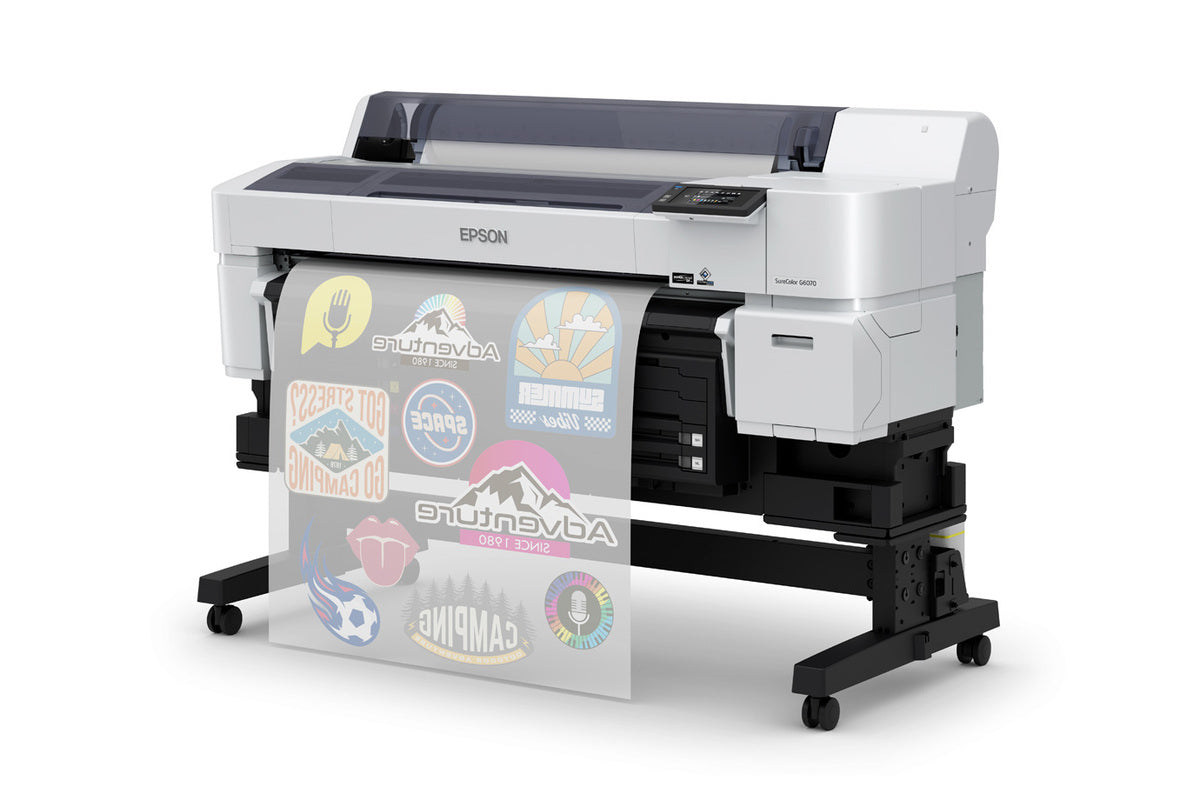
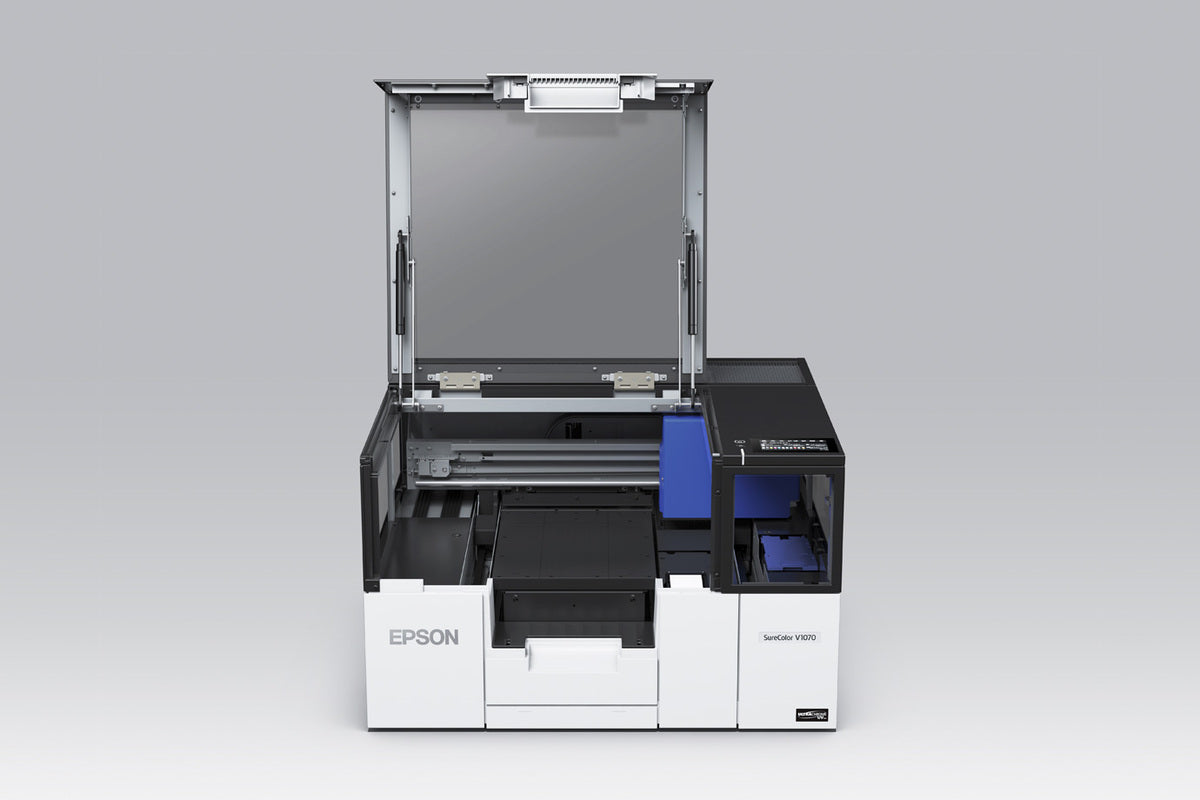
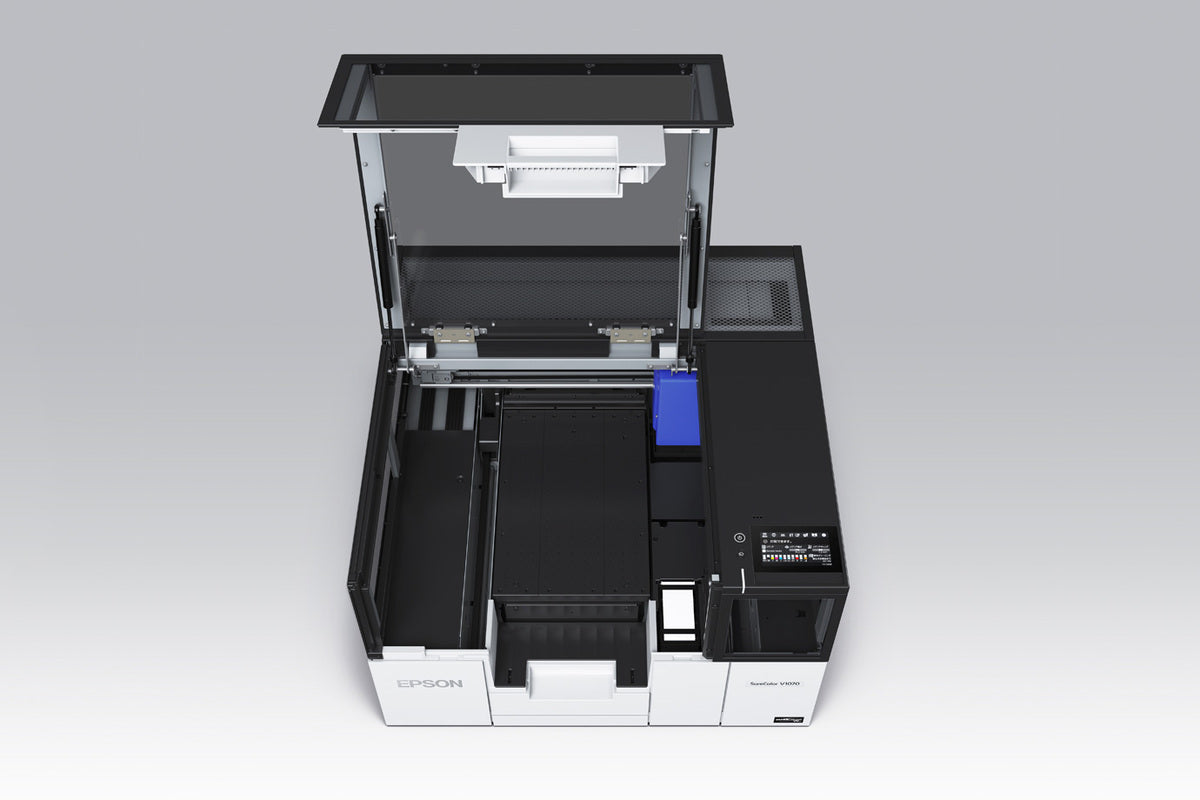
Designed for creators and print shops that demand consistent color accuracy, reliability, and professional output. Ideal for sublimation and specialty printing workflows, Epson printers deliver sharp details, vibrant results, and dependable performance for both small businesses and high-volume production environments.

Filter

9 products

  • Sort by

FAQs

What are the primary uses of Epson printers for professional imaging and sublimation?

Epson professional printers are engineered for high-precision dye-sublimation and photographic imaging, utilizing PrecisionCore printhead technology to ensure superior color accuracy and detail. These systems are primarily used to create vibrant, high-resolution transfers for diverse applications, including custom apparel, rigid signage, and professional-grade sublimation blanks. By integrating advanced UltraChrome DS ink sets, Epson printers provide the technical reliability and industrial speed required for high-volume commercial production environments at Joto Imaging Supplies. This versatile hardware supports both direct-to-film workflows and traditional sublimation, making it the industry standard for professional decorators.


Which types of transfer papers and sublimation blanks are compatible with Epson professional imaging printers?

Epson professional imaging printers are fully compatible with Epson DS Transfer Multi-Use and adhesive papers, which are engineered for high-quality output on both soft and rigid surfaces. These printers work seamlessly with a wide range of sublimation blanks, including polyester fabrics, ceramic mugs, and coated metal panels, ensuring vibrant color reproduction and durability. Using authentic UltraChrome DS inks alongside these optimized transfer media allows for superior ink transfer efficiency and professional-grade results. Consistent performance is achieved by matching these high-performance materials with specific printer settings to maximize the wide color gamut of your Epson system.

How can I properly maintain and clean my Epson printer to ensure long-term durability and consistent print quality?

To maintain your Epson printer for long-term durability, perform regular nozzle checks and use the built-in head cleaning utility whenever you notice banding or faint colors. Prevent clogs by printing at least once a week and always powering off the device using the control panel to ensure the print head is properly capped and protected from drying out. For professional results, keep the printer in a dust-free, climate-controlled environment and use high-quality inks to protect the PrecisionCore technology and sensitive mesh filters. Following these technical maintenance protocols will maximize your equipment's lifespan and ensure consistent, vibrant output for all your professional imaging needs.

How do I set up and configure my Epson printer for high-quality sublimation printing?

To set up your Epson printer for high-quality sublimation, begin by filling the tanks with premium sublimation ink and installing the latest drivers from the Epson support website. In your printing preferences, select Presentation Paper Matte as the media type and set the quality to High to ensure maximum ink saturation and fine detail. Navigate to the More Options tab to enable Mirror Image and set Color Correction to Custom, allowing you to apply specific ICC profiles for professional-grade color accuracy. Finally, perform a nozzle check to confirm a clean firing pattern before beginning your first production run on high-quality sublimation transfer paper.

What should I do if my Epson printer is not recognizing the sublimation ink cartridges or showing a communication error?

To resolve recognition issues, ensure the protective tape is fully removed and each sublimation ink cartridge is firmly seated in its correct slot until it clicks into place. If a communication error persists, gently clean the electronic contact chips on the cartridges with a lint-free cloth and isopropyl alcohol to ensure a stable connection with the print head sensors. For printers affected by recent firmware updates, performing a power cycle or reinstalling the cartridges through the on-screen maintenance prompts can often clear persistent error messages. Following these technical steps ensures your professional imaging workflow remains efficient and maintains the high-quality output expected from Joto Imaging Supplies.
How can I ensure professional-grade color vibrancy and image quality when using Epson printers for sublimation?

To achieve professional-grade color vibrancy and image quality, ensure you are utilizing high-quality sublimation ink and paper specifically paired with a custom ICC profile for precise color management. Configure your Epson printer settings to High Quality and select the correct media type, such as Epson Matte or Premium Presentation Matte, to optimize ink laydown. For maximum saturation on textiles, use fabrics with at least 65% polyester content and calibrate your heat press temperature and pressure according to the substrate's specific requirements. Maintaining your PrecisionCore printheads through regular nozzle checks will also prevent banding and ensure consistent, vivid results across all professional imaging projects.

How can investing in Epson printers improve the cost-effectiveness and long-term profitability of your professional sublimation business?

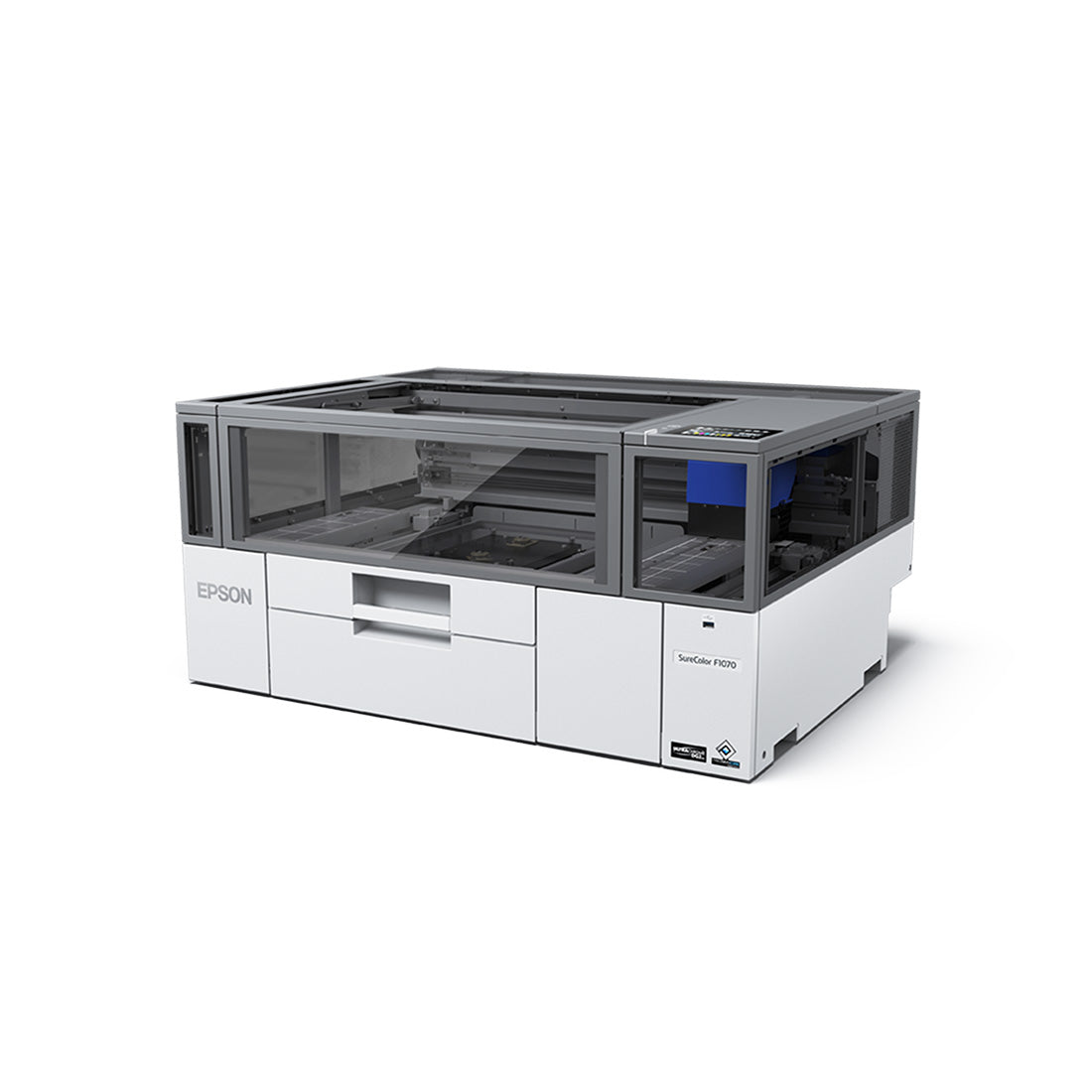
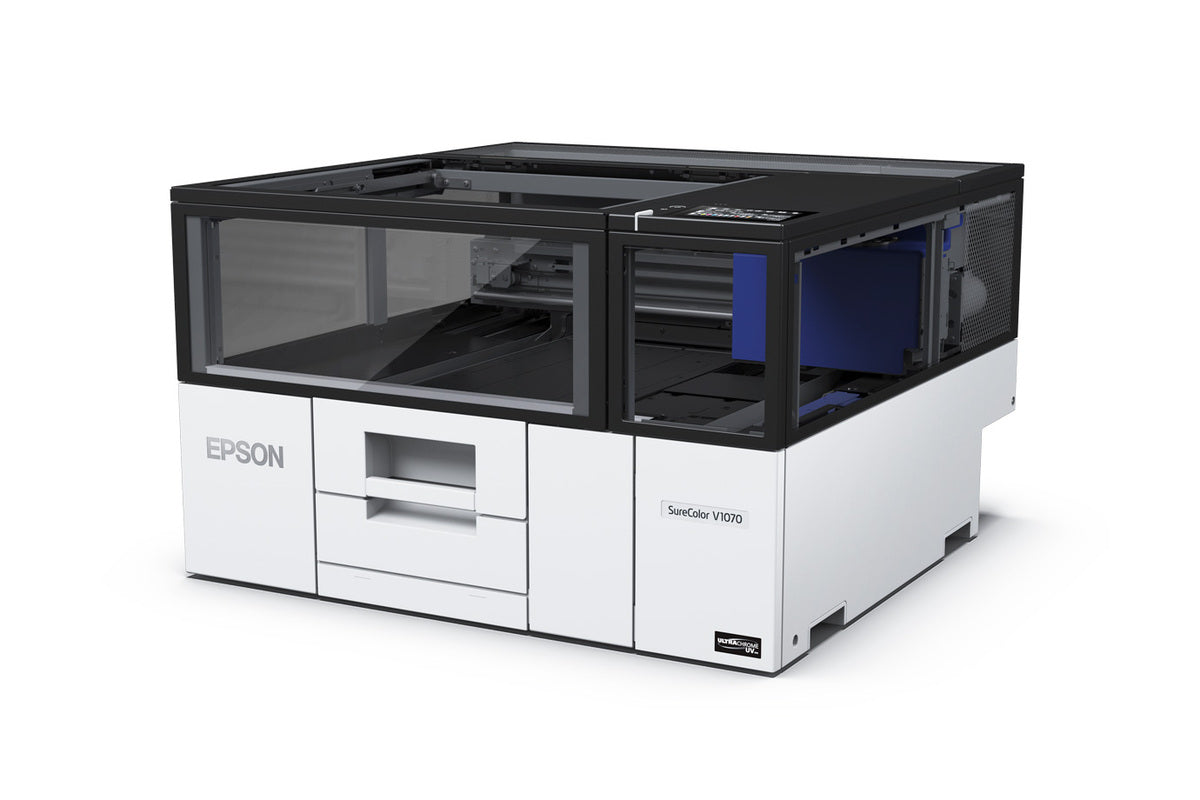
Investing in Epson printers improves cost-effectiveness through high-capacity ink tank systems and PrecisionCore technology, which significantly lower the total cost of ownership compared to cartridge-based models. These professional imaging solutions maximize long-term profitability by delivering high-speed performance and consistent, vibrant output that reduces waste and downtime. By utilizing reliable dye-sublimation hardware like the SureColor series, businesses can scale production efficiently while maintaining the professional-grade quality required for diverse market applications.

What are the recommended storage conditions and safety precautions for maintaining Epson professional printers?

To maintain Epson professional printers, store them on a level surface in a cool, dry environment away from direct sunlight and extreme temperature fluctuations. Ensure the print head is always in the home position to prevent nozzles from drying out and keep a waste ink bottle installed to avoid potential leakage. For extended periods of inactivity, initiate a storage mode operation or power on the device every two weeks to run automatic maintenance cycles and preserve print quality. Prior to resuming production, conduct a nozzle check and use lint-free cloths to remove accumulated dust from the feed rollers and exterior surfaces.

How do Epson printers compare to other decoration methods like screen printing or DTG for professional imaging?

Epson professional imaging printers offer superior versatility compared to traditional screen printing by enabling high-resolution, full-color output without complex setups or minimum order requirements. While screen printing is efficient for high-volume runs, Epson’s PrecisionCore technology provides a wider color gamut and finer detail for complex photographic prints and gradients. Hybrid models like the SureColor series bridge the gap by supporting both direct-to-garment (DTG) and direct-to-film (DTF) workflows, providing the adaptability needed to maintain high-quality standards across diverse substrates. This technical flexibility allows professional decorators to maximize business profitability by efficiently handling both small custom orders and large-scale production.

How can you optimize ICC profile settings and platen gap adjustments on Epson printers to maximize color gamut while preventing head strikes during high-volume production?

To optimize your Epson printer for high-volume production, ensure you use custom ICC profiles calibrated for your specific ink and substrate to achieve the widest possible color gamut and professional-grade accuracy. Adjust the platen gap to Wide or Wider when using thicker media or if you observe scuffs, as this prevents devastating head strikes and maintains printhead longevity. For consistent results, integrate these settings into custom media configurations within the Epson Media Installer or your RIP software to standardize ink density and paper thickness. Maintaining this technical balance between head height and color management ensures vibrant, high-saturation output while minimizing downtime and material waste.

Drawer Title
Similar Products